Beginner CAD User Manual
This is a basic operation guide for those using CAD for the first time. Follow the steps to master drawing figures.
STEP 1: Basic Operations and Screen Layout
Arrow keys and numbers
Drawing starts with the arrow keys and a number. After the start point, an arrow key sets the direction and a number sets the length. Your hand stays off the mouse while you enter the number. The mouse is still used to set the start point, open menus, and zoom.
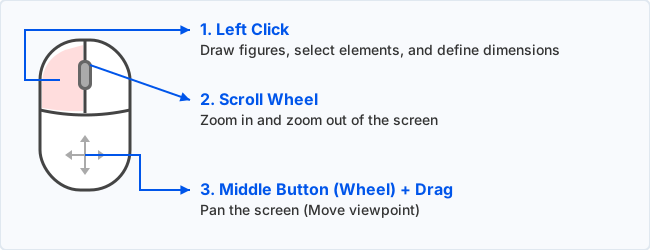
Basic Mouse Operations
- Left Click: Draw figures, select elements, and set start/end points.
- Scroll Wheel (Rotate): Zoom in and out of the screen.
- Space key + Left Drag (or Middle Button Drag): Pan the screen.
* If you are using a Mac trackpad, it is useful to drag while holding down the Space key.
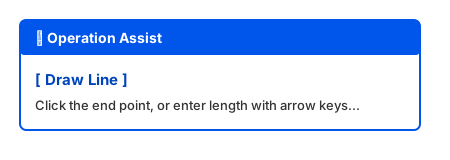
How to use Operation Assist
The "Operation Assist" panel in the top right of the screen always shows what you should do next. Check it if you get stuck.
Opening Menus
Move the mouse onto a menu name to open its submenu. If the cursor slips off the boundary for a moment, the menu stays open.
- Keep it open: Click a menu name to pin that submenu. Lower levels, such as "Copy", pin the same way when you click the item name.
- Close: Click somewhere that is not a menu, such as the canvas or the toolbar, to unpin and close it. Choosing a command also closes it.
STEP 2: Grid Settings
Showing the grid lets you draw as if you were using a ruler. The grid is hidden at first. Turn it on when you need it.
- Toggle Display: Click "Options > Grid Display (G)" in the menu, or press the G key, to show or hide the grid. A ✔ appears at the start of the item while the grid is shown.
- Change Spacing: You can freely change the grid size in 1mm increments from "Options > Grid Spacing...".
- Snap to Grid: When the grid is visible, the mouse snaps to an intersection as you move close. The grid is a guide for position. Length is set with the arrow keys and a number.
- White background: When the background is set to white in "Options > Background Color...", the grid is drawn in a dark line.
STEP 3: Let's Draw Figures
How to Draw a Line
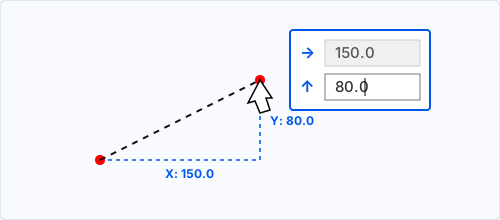
Select "/ Line" from the toolbar and click the start point. Press an Arrow key to open the length input. Enter the direction and length, then press Enter. Your hand stays off the mouse while you enter the number.
- Horizontal or vertical line: After the start point, press one Arrow key, enter the length, and press Enter.
- Diagonal line: After the start point, press an Arrow key (for example →) for the first direction and length, then press another Arrow key (for example ↑) for the second direction and length, and press Enter.
- Another way: You can also click the end point to draw the line.
How to Draw a Rectangle
Select "□ Rectangle" from the toolbar and click the first corner. Press an Arrow key to open the width and height inputs. Enter the numbers and press Enter or F. Your hand stays off the mouse while you enter the numbers. You can also click the opposite corner.
How to Draw a Circle
Select "◯ Circle" from the toolbar and click the center. The radius input opens. Enter the number and press Enter or F. Your hand stays off the mouse while you enter the number. You can also click a point on the circumference to set the radius.
Difference Between Elements and Figures
In this system, individual drawn lines (straight lines, circles, arcs, etc.) are called "Elements".
When "Elements" are connected and grouped together, they are called "Figures".
- Element: A single disconnected line, such as one straight line or one circle.
- Figure: A group of multiple elements merged using "Transform > Merge (Group)" from the menu. (You can delete or move them together as one unit).
STEP 4: Assist Functions for Accurate Drawing
Operations to remember
-
Arrow keys
Direction and length
After the start point, an Arrow key sets the direction and a number sets the length. Press Enter to confirm. Your hand stays off the mouse while you enter the number.
How to use: start point → Arrow key → number → Enter -
V Command
Temporary positioning (base point)
This continues the same number input. Near the point you want as a base, press V, then enter a direction and length with the Arrow keys.
How to use: Near the point you want as a base, press V → Arrow keys (+ numeric value) → Enter -
L Command
Snap to extended intersection
While drawing a line, press L to snap to the intersection of existing lines extended beyond their endpoints. Point the mouse in the direction you want to extend.
How to use: After setting the start point, move the mouse in the direction you want to extend and press L (press repeatedly to cycle through intersections when there are several)
Snap Function (Auto-align)
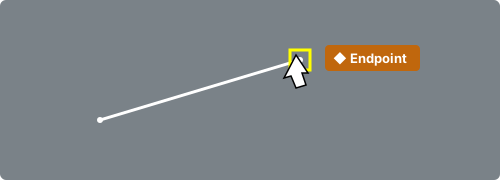
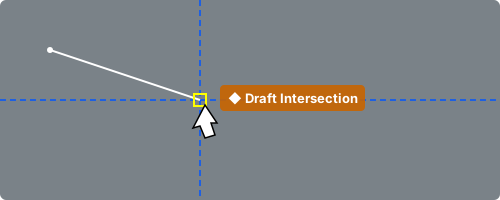
When you move the mouse near the "endpoint", "intersection", or "center of a circle" of an existing line, a yellow square mark appears and it snaps precisely. This allows you to draw accurate drawings without gaps.
Using Draft Lines (Auxiliary Lines)
Draft lines are guidelines used as references for the drawing. They start out blue, and they do not appear in prints or exported data.
Line: Select "Draft > Line" from the menu.
- Click the 1st point and the 2nd point. This makes an infinitely long draft line through the two points.
- When you click the 3rd point, the line from point 1 to point 2 stays, and the infinite draft line is removed. A draft line is also drawn from point 2 to point 3. From the 4th point on, each click draws a draft line from the previous point.
Press ESC, F, or Enter to end the command.
Horizontal and vertical lines: Use "― H-Draft" or "| V-Draft" on the toolbar.
Change color: "Draft > Draft Color" changes the color of every draft line already drawn. Draft lines you draw after that use the same color.
STEP 5: Modifying and Editing Figures
Rounding Corners (Fillet)
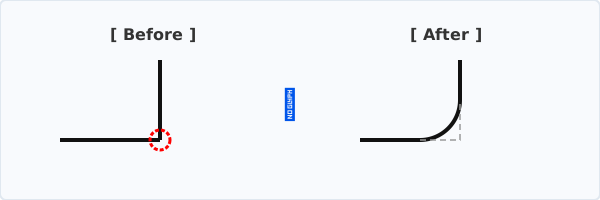
Click two intersecting line segments, and enter the "Fillet Radius (R)" in the popup box to modify the corner into a smooth arc. In 2-Point Dimension, clicking this arc places the dimension point at the straight-line corner from before the fillet.
Splitting an Element (Split Line)
Select "Modify > Split Line". A straight line, an arc, or a circle is divided into two at the position you indicate. The line type and color stay the same. When elements overlap, choose the one you want from the list.
- Click the element you want to split.
- Click the split position. Grid snap and endpoint snap can be used.
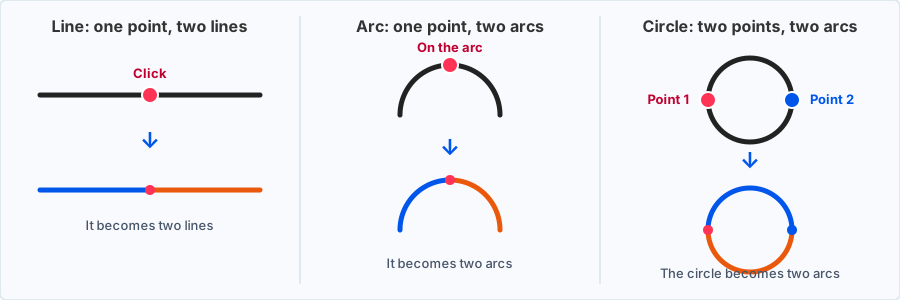
- Straight line: It becomes two lines at a point on the line. A point too close to an endpoint cannot be used.
- Arc: It becomes two arcs at a point on the arc. A point that is not on the arc, or too close to an endpoint, cannot be used.
- Circle: Indicate two points on the circumference, in order. It becomes two arcs. A point that is not on the circumference, or too close to the first point, cannot be used.
Press ESC to cancel the selection. Press ESC again when nothing is selected to exit the command. After a split, the command stays active so you can split another element.
Changing Length (Stretch Line)
Select "Modify > Stretch Line". The endpoint nearer to your click moves, changing the length of a straight line or an arc. Circles have no endpoints, so they cannot be stretched. The line type and color stay the same.
- Click the element near the endpoint you want to move.
- Click the target position.
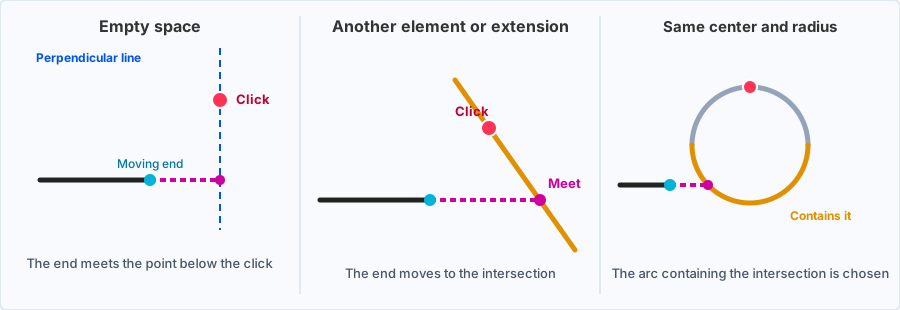
- Empty space: The endpoint moves to the virtual line that passes through that point and is perpendicular to the element. Grid snap and endpoint snap can be used.
- Another element, or its extension: The endpoint moves to where the two extensions meet. If they do not meet, the length does not change.
- Same center and radius: If other arcs share both the center and the radius of the arc you indicate, the one that contains the intersection is selected automatically. Arcs with a different radius are not included.
- Check the position, then click a 3rd point, or press F or Enter, to make it solid.
ESC steps back in this order: cancel the 2nd point, cancel the selected element, then exit the command. After the element is made solid, the command stays active so you can stretch another element.
STEP 6: Moving Figures (Transform)
From the "Transform" menu, you can move a figure, copy it, or group elements into one figure. The target is connected elements, or a figure already merged. Grid snap and endpoint snap can be used.
Moving or Copying in Parallel
Select "Transform > Move > Parallel Move", or "Transform > Copy > Parallel Copy".
- Click the figure you want to move.
- Click the reference point (Base Point 1).
- Click the destination point (Base Point 2). A preview figure is shown.
- Check the position, then press F or Enter to execute.
- Move: The original figure is removed and shifts by the distance from Base Point 1 to Base Point 2.
- Copy: The original figure stays, and a figure is added at the same offset.
ESC steps back in this order: cancel Base Point 2, cancel Base Point 1, cancel the selected figure, then exit the command. After execution, the command stays active so you can move another figure.
Mirroring Left-Right or Up-Down
Select "Mirror H" or "Mirror V" under "Transform > Move" or "Transform > Copy". The click order is the same as a parallel move. The figure is mirrored so that Base Point 1 lands on Base Point 2.
- Mirror H: Swaps left and right.
- Mirror V: Swaps up and down.
- Move: The original figure is removed.
- Copy: The original figure stays.
Rotating a Figure (Rotate Arbitrary)
Select "Transform > Move > Rotate Arbitrary", or "Transform > Copy > Rotate Arbitrary". A group of lines, arcs, and circles is rotated around the center you indicate. Connected elements, or a merged figure, are selected together. There are 4 clicks. Grid snap and endpoint snap can be used.
- Click the figure you want to rotate.
- Click the center of rotation.
- Click the source position. The direction from the center to this point is the angle before rotation.
- Click the destination. The figure rotates to the direction from the center to this point, and the command is executed immediately. As you move the mouse, a preview of the rotated figure and the angle are shown. Counterclockwise is a positive angle.
A point that lands on the center cannot be used as the source or the destination.
- Move: The original figure is removed and placed at the rotated position.
- Copy: The original figure stays, and the rotated figure is added.
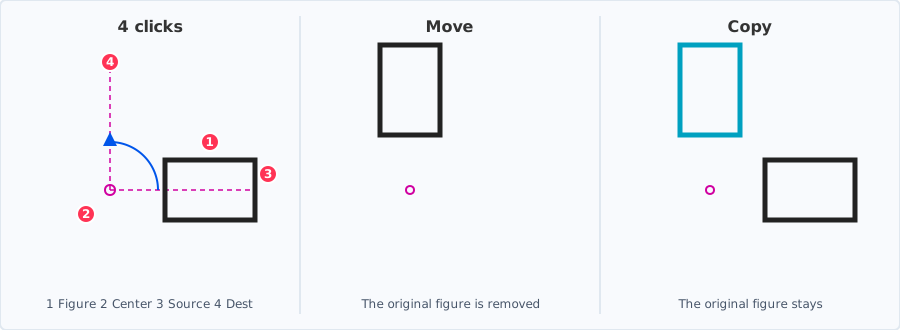
ESC steps back in this order: cancel the source, cancel the center, cancel the selected figure, then exit the command. After execution, the command stays active so you can rotate another figure.
Grouping into One Figure (Merge)
Select "Transform > Merge (Group)". Separate elements become one figure.
- Click the elements you want to group. Click an element again to deselect it. Two clicks on empty space select the elements that lie completely inside that area. A figure that is only partly inside is not selected.
- Press F or Enter to make them one figure. Select two or more elements.
The command ends when the merge is confirmed. Press ESC to cancel the selection. Press ESC again when nothing is selected to exit the command.
Cleaning Up Overlaps
Select "Transform > Organize (Merge Duplicates)" to merge overlapping lines into one and group connected elements into figures. Running this before data conversion makes the cutting-order judgment more stable.
STEP 7: Adding Dimensions
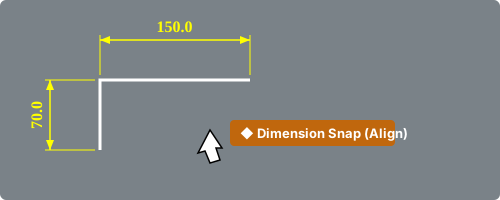
Select tools like "📐 Elem Dim" and click the line segment you want to measure to pull out a dimension line. Hover near an existing dimension line to align it automatically.
A whole number is shown without decimals. A value that needs only one decimal place is shown to one place (for example, 10.1). Any other value is shown to two decimal places (for example, 10.12).
- Color for new dimensions: "Dimension > Dim Color" sets the color of dimension lines you add from now on.
- Color of placed dimensions: "Dimension > Placed Dim Color" changes the color of every dimension line already drawn. Undo restores the previous colors.
Measuring Two Diagonal Points (2-Point Dimension)
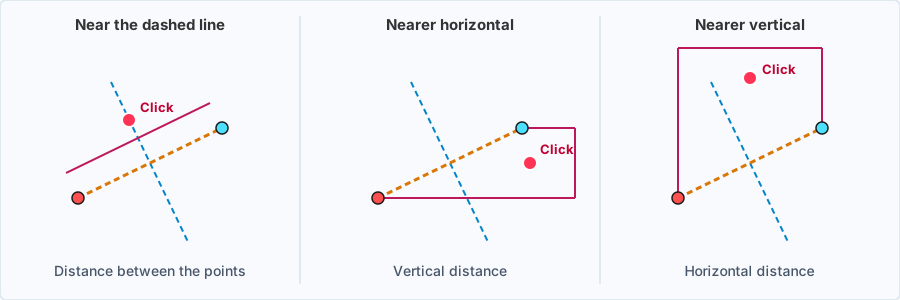
Select "📏 2-Pt Dim" and click the two points to measure. After the 2nd point, a line through the two points (gold dashes) and a dashed line that bisects it at a right angle (cyan) are shown. The 3rd click decides which distance is measured.
- Near the dashed line: The distance between the two points.
- Nearer horizontal: The vertical distance.
- Nearer vertical: The horizontal distance.
When the two points already lie on a horizontal or vertical line, the distance between them is measured. Hover near an existing dimension to align the new one.
Click a fillet arc and the point is the corner where the two straight lines joined to that arc would meet if each line were extended (the corner before rounding). A click along a straight line stays on that line.
STEP 8: Data Conversion (DXF / EPS)
Click "🔄 Convert (Z)" on the right side of the toolbar to switch to the conversion screen. If you plan to use the drawing with a laser cutter or other software, export your data from here.

Sort Path (Cutting-order optimization)
A laser cutter or cutting plotter processes elements in the order they appear in the data. If the order is mixed up, the outer outline may be cut first and the part may shift, or the cutting head may travel back and forth unnecessarily.
Click "✨ Sort Path" on the conversion screen (or "Transform > Sort Path" in the menu) to automatically reorder the elements for easier cutting, without changing the drawing shape. Only the order and the direction each line is traced will change.
- Inner holes and windows first: Inner figures are processed before the outer outline, so holes can be cut while the part is still held in the material.
- Finish one part at a time: One part is completed before moving on to the next. The tool will not jump to another part in the middle.
- Outermost line last: The outer outline is cut only after all holes and fold lines of that part are finished.
- When to run it: Running it once just before exporting to DXF / EPS is enough. It is safe to run it more than once.
- Before you run it: Overlapping lines at the same location can break the judgment. First merge duplicates with "Transform > Organize (Merge Duplicates)" on the CAD design screen.

Checking Cutting Order
Click "▶ Cutting Order" on the conversion screen to play an animation of the actual cutting sequence. After Sort Path, you can visually confirm that the order matches your intent. Press ESC to exit.
For detailed rules and what to do when the order is not as expected, see the Sort Path Manual.
Turning Text into Lines (Text Outline)
Open "Text Outline" from the App menu at the top right. The text you enter is converted into small CAD lines and placed on the canvas. The placed figure stays visible when you switch to Beginner CAD, Data Convert, or the Digitizer. One character is one figure.
For horizontal and vertical placement, and for how to choose a font, see the Text Outline Manual.