Digitizer User Manual
These steps turn a shape drawn on graph paper into a digital figure from a photo. Operation Assist, at the upper right of the screen, shows what to do next.
STEP 1: Basic operation
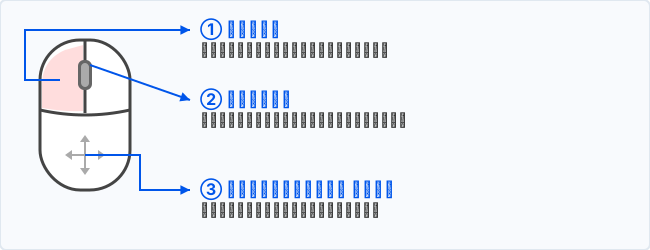
Mouse
- Left click: place a reference point, add a trace point, draw a line or arc, or select an element.
- Mouse wheel: zoom in and out.
- Space + left drag (or middle-button drag): pan the view.
On a Mac trackpad, hold the Space key and drag.
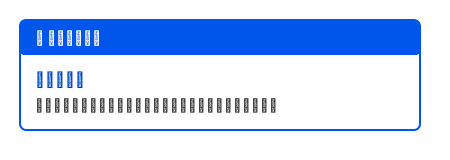
Operation Assist
Operation Assist, at the upper right, always shows the next action. Look there when you are unsure.
STEP 2: Open an image
Load a photo of graph paper from "🖼 Open Image" on the toolbar, or from Image > Open Image...
- JPEG, PNG, WebP, GIF, and BMP are supported.
- If the photo is sideways, use "Rotate 90° Clockwise" and repeat as needed.
- When you open an image, choose the graph paper first: 5 mm grid, 10 mm grid, or Custom (mm per square).
How to photograph (so the scale is exact)
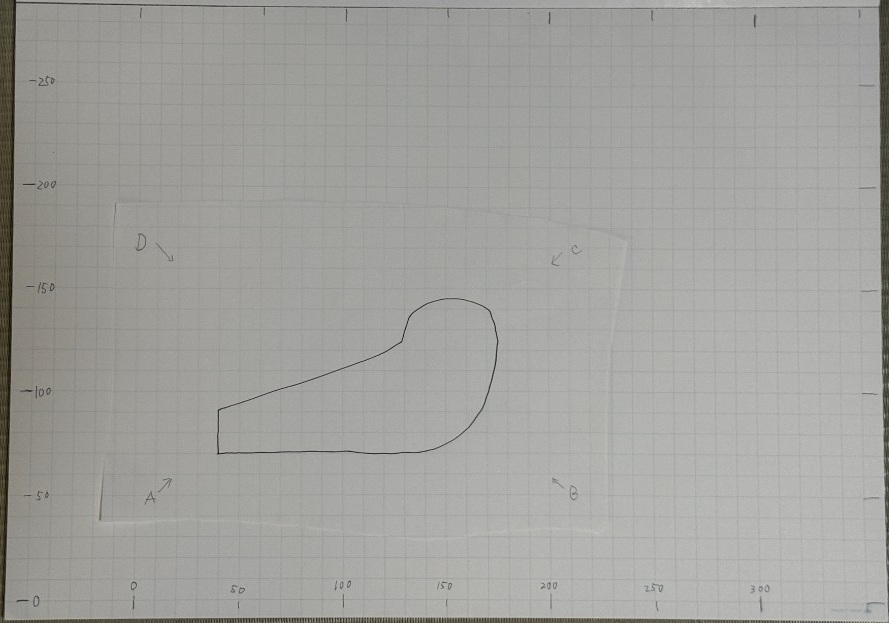
The length of one square is the basis of the scale. Photograph with these rules so the real length of A–B is unambiguous.
- Decide the length of one square, and choose the same value when you open the image.
- Write real lengths along the edge, such as 0, 50, 100, 150…
- Do not let the shape hide the dimensions or the grid. If you draw on a separate sheet, place it so the numbers around it stay visible.
- Photograph from as directly above as you can, with the grid in the frame.
- Place A and B on grid intersections of the same horizontal line.
- Real length of A–B = number of squares × length of one square. The difference of the numbers written on the axis is the same value.
Example: on a 10 mm grid, if A is 50 and B is 200, A–B is 150 mm.
STEP 3: Reference points A → B → C → D
Choose "📍 Points" on the toolbar, or Image > Reference Points A→B→C→D. Click the four points in this order.
-
A → B
Horizontal and scale
Two points that should be horizontal on the graph paper. Place them on intersections of the same horizontal line. The real length of A–B (squares × one square) becomes the scale in the correction. -
C and D
Vertical and distortion
Two points that should be vertical on the graph paper. The relations of A–B, B–C, and A–D straighten perspective and tilt in the photo.
- While you enter reference points, mouse movement is halved, and a magnifier opens near each point.
- Z zooms the magnifier in. W zooms it out.
- Esc removes the last reference point, one at a time.
STEP 4: Correct (scale and distortion)
After A, B, C, and D are entered, choose Correct.
- Enter the real length of A–B in millimeters. It is number of squares × length of one square, or the difference of the numbers written on the axis.
- The field may already contain a value estimated from the grid you chose. Change it if it is not the real length.
- Run turns the photo into an image that is horizontal, vertical, and at the correct scale.
STEP 5: Extract the shape
Outer Trace
Choose Extract Shape > Outer Trace.
- Click the closed shape to trace. The outside of a filled shape is extracted automatically.
- When one image has several shapes, click only the closed shape you want. You can click another afterward.
- If you run this before correction, a confirmation appears. Complete STEP 4 first when you can.
- Esc ends the selection.
Inner Trace
Choose Extract Shape > Inner Trace.
- Click the closed shape to trace. Openings inside that shape are extracted automatically.
- When one image has several shapes, click only the closed shape you want. You can click another afterward.
- If you run this before correction, a confirmation appears. Complete STEP 4 first when you can.
- Esc ends the selection.
Centerline Trace
Choose Extract Shape > Centerline Trace, or the Centerline Trace button on the toolbar.
- Click the closed shape to trace. The same outside line as Outer Trace is taken, then offset inward by 0.15 mm.
- The offset is 0.15 mm in the corrected scale.
- When one image has several shapes, click only the closed shape you want. You can click another afterward.
- If you run this before correction, a confirmation appears. Complete STEP 4 first when you can.
- Esc ends the selection.
Manual Trace
Choose Extract Shape > Manual Trace.
- Click along the outline to place points.
- Click near the start, or press Enter or double-click, to close it.
- Esc removes the last point.
STEP 6: Draw the outline with lines and arcs
After an outer, inner, centerline, or manual trace, add any missing parts with lines and arcs.
Line
Choose Extract Shape > Line. Click the start, then the end. The end becomes the next start. The cursor snaps to an existing endpoint.
Arc
Choose Extract Shape > Arc. Click three points in order: start, through point, end.
STEP 7: Clean up the outline (Correct menu)
Choose Correct, or Arc Fit, Join Ends, and Split on the toolbar.
Arc Fit
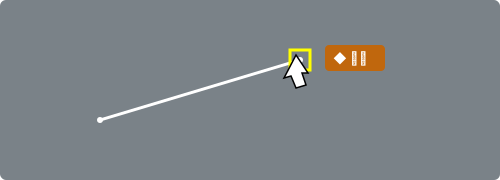
Replace a part that is still a line with an arc. Click near the middle of a line whose endpoints show yellow circles, then click the through position of the arc.
To adjust an arc you already made, choose Arc Fit again, click the arc, and click a new through position. The endpoints stay, and the bulge changes.
Join Ends
Click once where two elements meet to select those endpoints. Click the new corner to move them.
Split
Click a line or arc to divide it into two at that position. A point too close to an endpoint cannot split the element.
STEP 8: Delete, save, and view
- Delete Element: removes only the one line, arc, or polyline you click.
- Delete Figure: removes elements whose endpoints touch, as one figure.
- Undo (⌘Z / Ctrl+Z): returns to the previous state.
- Save (.dgz): saves the image before correction, the image after correction, and the drawing on this computer.
- Open: loads a saved .dgz (or .json) file.
- Redraw / Fit All: fits the image and the figure on the screen.
- Grid: Options > ✔ Grid (G), or press G.
STEP 9: Pass the drawing to Beginner CAD
Pass the extracted shape, and any lines and arcs you drew, to Beginner CAD. The photo itself is not passed.
- Choose App > Beginner CAD. While ready, Z also passes the drawing.
- During reference-point entry, Z zooms the magnifier. It does not open Beginner CAD.
- Lines, arcs, and polylines on the screen are passed. A polyline is split into the straight segments between its points.
- Lines whose endpoints touch become one figure in Beginner CAD.
- Nothing is passed when there is no figure. Extract a shape, or draw lines and arcs, first.
- Beginner CAD then opens. The data stays in this browser and is not sent to a server. From the English Beginner CAD, you return to the English screen.