Three features of Text Outline
A font that fits the text
As you type, a fitting font appears in the green box. Gothic for Japanese, Roboto for letters and digits, and a gothic font on the PC when both are mixed.
Horizontal and vertical
Horizontal text is placed from the left of the first character. Vertical text runs top to bottom, and a new line continues in the column to the left. Height and curve tolerance are shared.
One character is one figure
Each placed character is one figure. Holes in a character stay in that figure. The drawing is saved as .mkb.
Screens
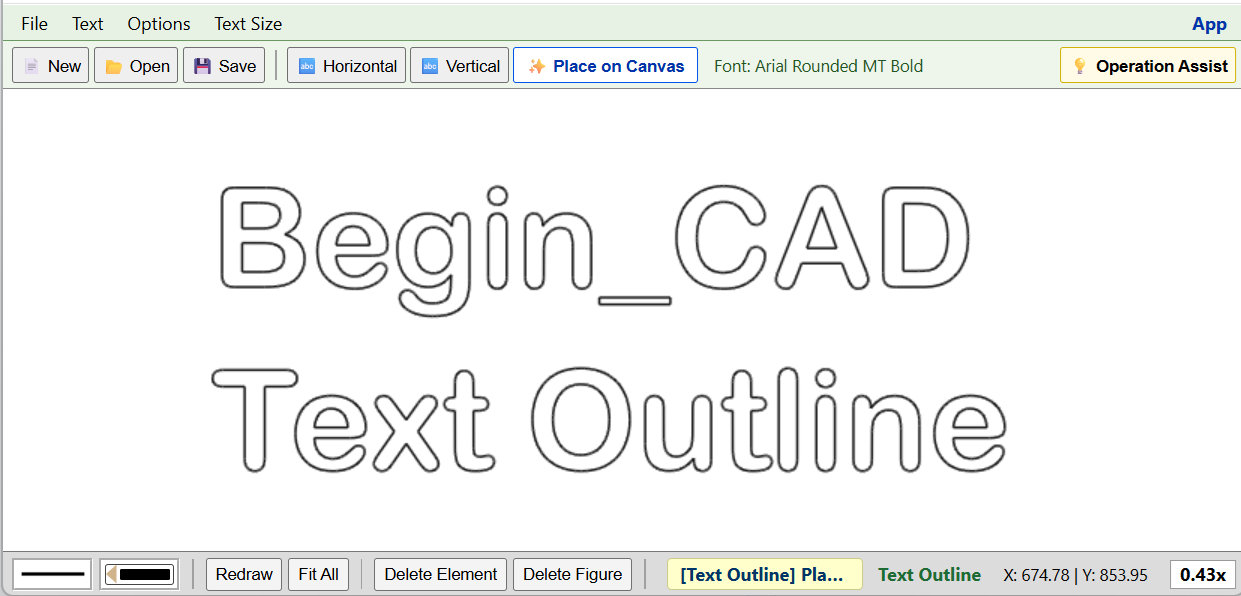
Text placed on the canvas
The string is placed on the canvas as outline lines. Each character is one figure.
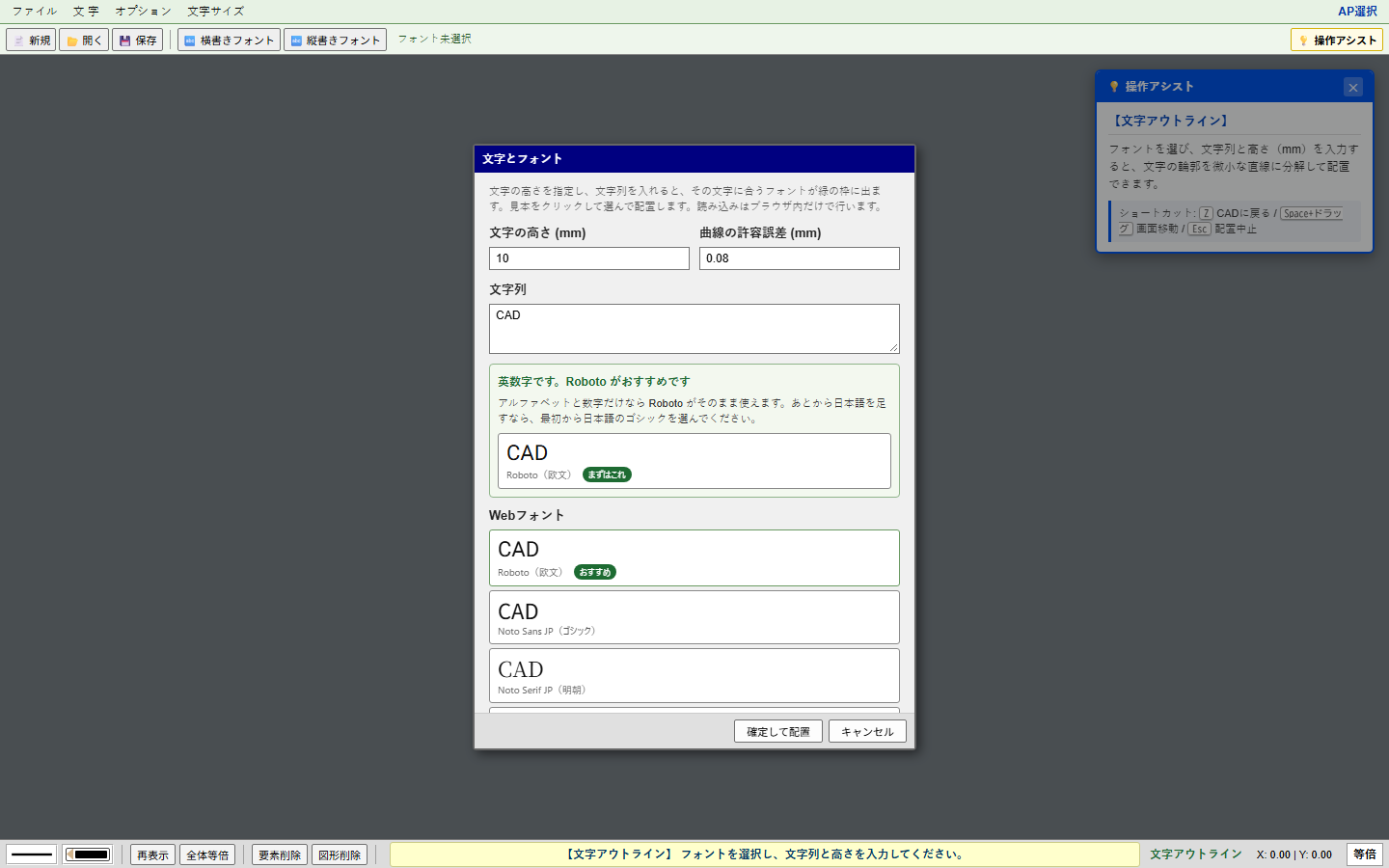
Horizontal “Text and Font”
Set the height, then type the text. A sample appears. Click a sample, then Confirm and Place. The click is the left end of the first character.
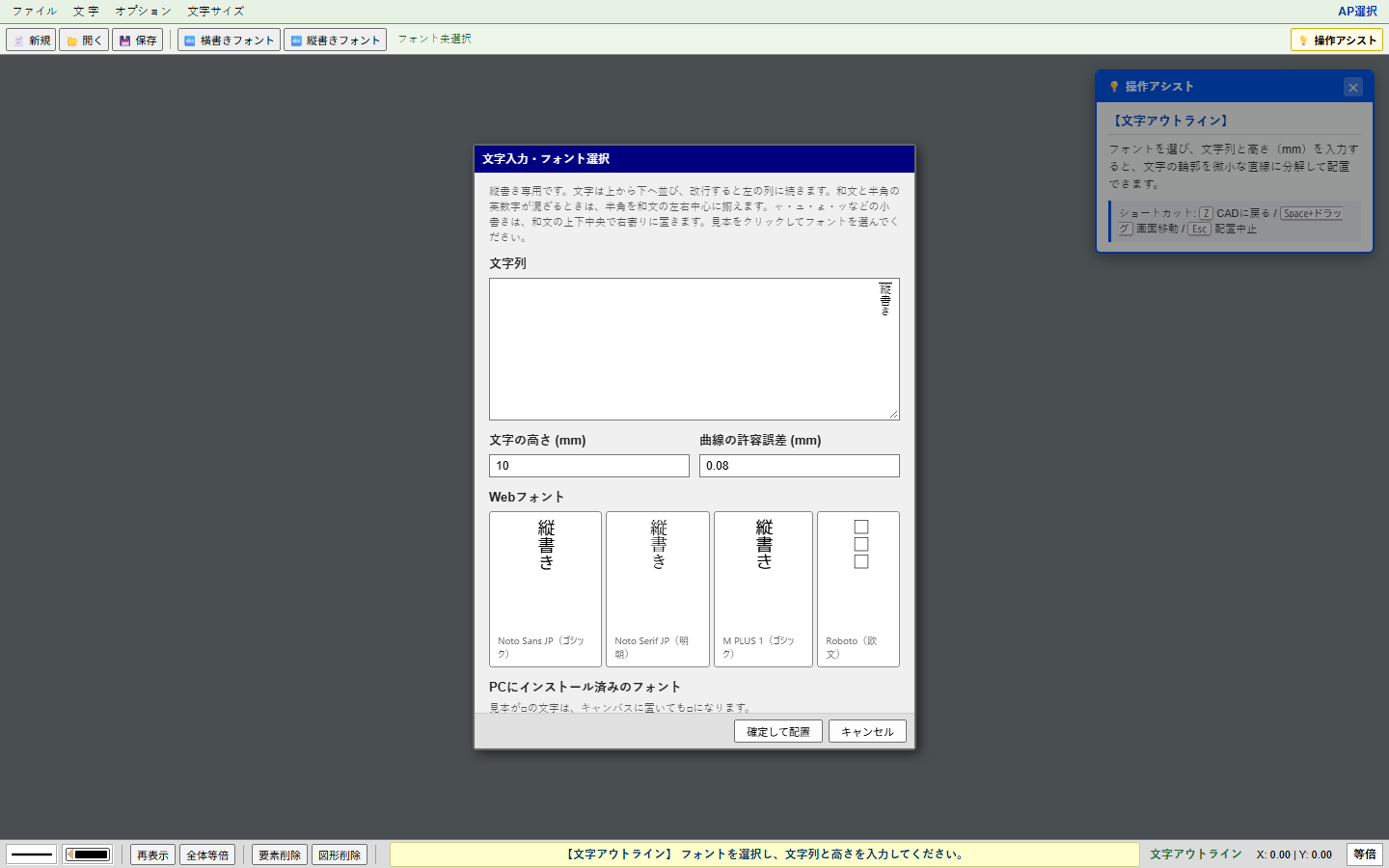
Vertical “Vertical Text and Font”
The field and the sample run from top to bottom. Half-width Latin is centered on the Japanese column.
Specifications
| Where it runs, and the price | Open it from App in Beginner CAD. Runs in a web browser. No install. Free. |
|---|---|
| Placement | Horizontal and vertical. Text height (mm) and curve tolerance (mm). Snaps to existing endpoints. Spaces are not figures. |
| Fonts | Web-font samples, a list of fonts on this PC, and TTF, OTF, or WOFF files. WOFF2 and font collections (.ttc) are left off the list. |
| Figures | One character is one figure. Delete Figure removes that character. Delete Element removes one line. |
| Save and handoff | .mkb. Placed figures stay visible in Beginner CAD, Data Convert, and the Digitizer. Outlines are made in the browser. |
Open it in the browser
The same terms as Beginner CAD apply. The manual explains horizontal and vertical placement.